Neat File Manager
The Neat File Manager (nfm) was an experimental terminal file manager. I passed on maintainership↗, since I now just use dired in emacs.
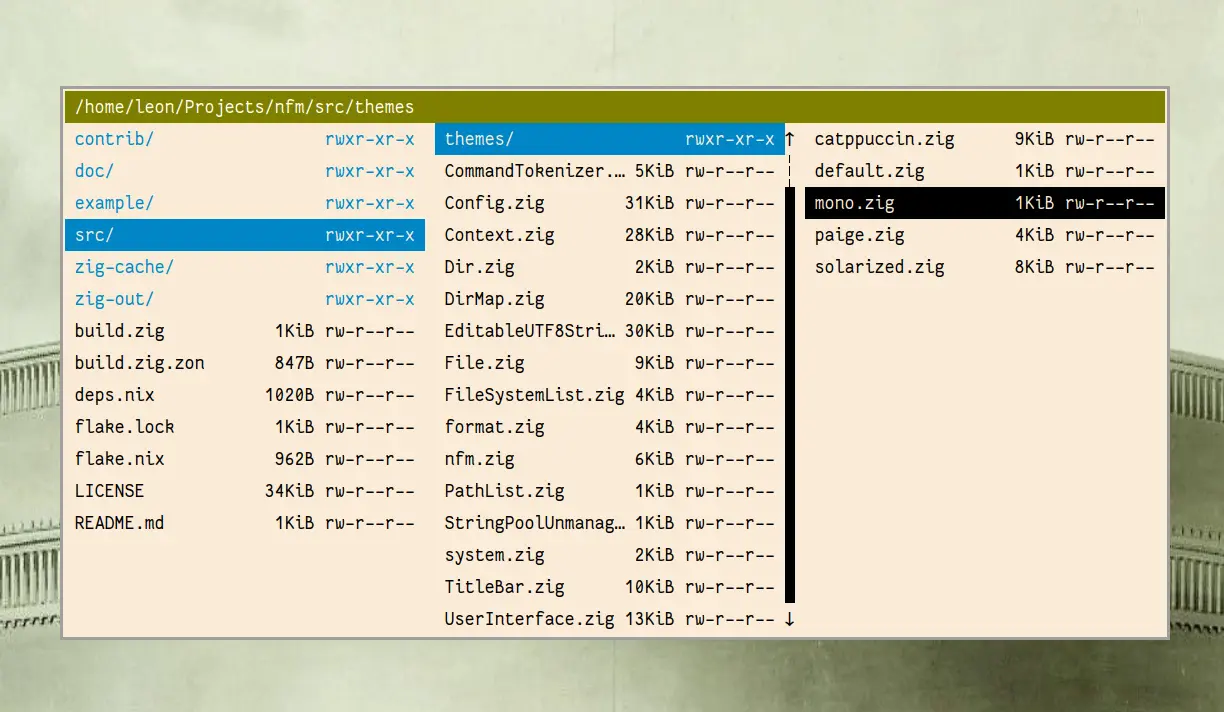
It implements no file management operations itself and instead tries to integrate as tightly as possible with core utils and the users preferred programs. Designed to supplement the shell rather than replace it. Also at time of writing it is the only terminal file manager which has real miller columns, rather than a fixed number of columns.
The experiment was a successful proof-of-concept, yet also a failure, since writing zig-spoon, the zig TUI library that powers nfm, made me realize that the POSIX terminal is not a good target for application development. I have since abandoned almost all TUI programs, except an IRC client.
nfm(1)
NFM(1)                                General Commands Manual                                NFM(1)

NAME
     nfm - the neat file manager

SYNOPSIS
     nfm [--selector] [--dump-cwd] [--view view]
     nfm [-h] [--help]

DESCRIPTION
     nfm is a terminal file manager.

     Unlike  other terminal file managers, nfm does not aim to replace the shell for file based op‐
     erations.  Instead it lets you quickly compose  file  manipulating  shell  commands,  interac‐
     tively.   This  means nfm uses the common system utilities you already know for all operations
     via the command mode.  Only very little functionality is implemented in nfm directly for  con‐
     venience.

     In  other words, nfm is a file manager for terminal users who usually prefer to just use their
     shell for file management.

OPTIONS
     -h, --help
            Print help text and exit.

     --selector
            If launched with this flag, nfm will be in selector mode.  In  this  mode,  instead  of
            opening  files  on commit, nfm will write their full path to stdout and exit.  This al‐
            lows nfm to function as a file selector for other programs.

     --dump-cwd
            If launched with this flag, nfm will write the full path of the current working  direc‐
            tory  to  stdout  when exiting.  This can be used to create cd wrappers for nfm in your
            shell.  This feature does not work in selector mode.

     --view nav|fs
            Set the initial view entered on startup.

USAGE
     In this section the general usage of nfm is briefly outlined.  This is by no means exhaustive,
     but should provide a good overview.

     Almost everything you will do in nfm will follow a simple order: First you  select  files  and
     then you either commit them or use them in commands.

     You can use two methods to select files: The cursor and marks.  The cursor is the highlighting
     line in the file list you can move up and down with keybinds.  It allows you to quickly select
     a  single file in the current directory.  Marks come in handy when you need to operate on mul‐
     tiple files at once, perhaps even across multiple directories.  You can apply marks  to  files
     manually or automatically based on regular expressions.  The cursor and marks do not conflict.
     You can operate on the file selected by the cursor even if marked files exist.

     When  you  commit  a selection, nfm will try to automatically determine the best operation for
     the file(s).  Text files are opened in an editor, other files will be passed to a configurable
     opener tool.  If the selection is a single directory, it will be entered.

     Custom operations on files can be implemented using commands.  nfm lets  you  configure  shell
     commands  bound  to keys and can automatically insert the paths of the selected file(s).  Com‐
     mands can either be executed directly, or opened in the command prompt for editing.  The posi‐
     tion of the command prompt cursor can be configured as well.

     Alternatively to pre-configured commands, you can also compose commands at runtime by  opening
     an empty command prompt and inserting file paths yourself.

DEFAULT KEYBINDS
     This  is  a list of which functions are bound to which keys by default.  If you are interested
     in the description of the bound functions or want to know how to  configure  your  own  binds,
     read nfm(5).
            KEY                 FUNCTION
            ───────────────────────────────────────────────────────────────
            j, down, C-n        cursor-move-down
            k, up, C-p          cursor-move-up
            h, left, C-b        enter-parent-dir
            l, right, C-f       commit-file-at-cursor
            G, g G, g j, end    cursor-move-to-bottom
            g, g g, g l, home   cursor-move-to-top
            g ~, g h            run(cd ~)
            g r                 run(cd /)
            page-down, g n      cursor-move-page-down
            page-up, g p        cursor-move-page-up
            enter, begin        commit-marks
            space               clear-marks
            escape              set-view-files
            i                   invert-marks
            m                   mark-file-at-cursor
            M-s                 open-select
            M-k                 open-keep
            M-d                 open-discard
            /                   open-search
            n                   cursor-move-to-next-match
            N                   cursor-move-to-previous-match
            M-n                 cursor-move-to-next-mark
            :, M-x              open-cmd
            M-h                 toggle-hidden-files
            M-m                 open-cmd(mkdir "%c")
            M-t                 open-cmd(touch "%c")
            M-e                 open-cmd($EDITOR "%c")
            e                   open-cmd($EDITOR %c -- %f)
            o                   open-cmd(%c  %f)
            q, C-c, C-x C-c     quit
            C-x C-f             open-cmd(cd )
            M-c, C-x 1          collapse
            C-x 2               run(%TERMINAL %N)
            S                   run($SHELL)
            x                   open-cmd(rm %f)
            backspace, g b      jump-back
            f                   toggle-view-filesystems
            c                   open-cmd(mv %f %f%c)
            F1                  run(man nfm)
            F2, C               open-cmd(mv %f )
            F3                  toggle-permission-format
            F4                  toggle-size-format
            F5                  toggle-sorting-scheme
            F6                  toggle-directories-first
            1 ... 9             cursor-move-to-relative-index(0 ... 8)

KEYBINDS IN THE INPUT PROMPT
     These  are  the  operations  bound  to keys for the user input prompts.  They are deliberately
     hard-coded and can not be configured.
            KEY                     OPERATION
            ──────────────────────────────────────────────────────
            C-i                     Insert the name of the
                                    file selected by the cur‐
                                    sor.
            M-i                     Insert the paths of all
                                    marked files.
            enter                   Commit operation.
            escape, C-c, C-g        Abort operation and exit
                                    input prompt.
            C-a                     Move the prompt cursor to
                                    the beginning of the
                                    line.
            C-e                     Move the prompt cursor to
                                    the end of the line.
            C-w                     Delete all characters
                                    from the prompt cursor to
                                    the start of the previous
                                    word.
            C-k                     Delete all characters
                                    from the prompt cursor to
                                    the end of the line.
            M-b                     Move prompt cursor to the
                                    start of the previous
                                    word.
            M-f                     Move prompt cursor to the
                                    start of the next word.
            right, left, C-f, C-b   Move the prompt cursor by
                                    one character.
            up, down, C-p, C-n      Scroll through history.
            M-j, M-k, M-n, M-p      Move the selection cur‐
                                    sor.

ENVIRONMENT
     The following environment variables are used by nfm.  Their presence is not strictly required,
     however certain features may depend on them.

     • XDG_CONFIG_HOME

     • HOME

     • EDITOR

AUTHOR
     Leon Henrik Plickat

SEE ALSO
     nfm(5)

git.sr.ht/~leon_plickat/nfm                  2022-02-23                                      NFM(1)
nfm(5)
NFM(5)                                  File Formats Manual                                  NFM(5)

NAME
     config.ini - configuration file for nfm(1)

DESCRIPTION
     nfm uses the INI file format for configuration, meaning variable-value-assignments sorted into
     sections.

            [section]
            # This is a comment
            variable = value;

     On startup nfm will look for a file in the following locations, in this order:

     • $XDG_CONFIG_HOME/nfm/config.ini  (or $HOME/.config/nfm/config.ini should $XDG_CONFIG_HOME be
       unset)

     • /etc/nfm/config.ini

SECTION: main
     opener = <program>;
            The program used to open non-text files, such as xdg-open(1) or a custom script.   This
            will  be  called  for  each committed file individually, with the path as the first and
            only argument.  This option is not set by default.

     ascii-only = true|false;
            Whether to use only ASCII characters for UI elements.   Defaults  to  true  when  $TERM
            equals "linux", otherwise false.

     show-hidden = true|false;
            Whether to show hidden files on startup.  Defaults to false.

     directories-first = true|false;
            Whether to sort directories above files.  Defaults to true.

     sorting-scheme = alphabetical|size;
            How items in the files view will be sorted.  Defaults to alphabetical.  Note that sizes
            of  directories  are not determined, as this would require walking the entire directory
            tree recursively.

     permission-format = none|text|octal;
            The format used for displaying file permissions.  Defaults to text.

     size-format = none|iec|si;
            The format used for displaying file sizes.  Defaults to iec.

     navigation-mode = descend|singular;
            How to display the files in the navigation view.  Defaults to descend.

     mouse-support = true|false;
            Whether to enable mouse support.  Defaults to false.

     theme = default|mono|paige|solarized-dark|solarized-light|catppuccin-frappe|catppuccin-macchi‐
     ato|catppuccin-mocha;
            Which pre-defined colour theme to use.  Colours can be configured individually  in  the
            colours section.  Defaults to default.

SECTION: keybinds
     In this section specific actions can be bound to keypresses.  In terms of the file format, the
     key description is the variable and the action the value.

     Example:
            j = cursor-move-down;

     For  regular  keys,  key descriptions are the symbol produced by the key and optionally one or
     multiple modifier prefixes.
            Modifier       Prefix
            ──────────────────────────
            Alt / Meta     M-
            Control        C-
            Super / Logo   S-

     Shift is supported implicitly by using upper-case letters instead of lower-case letters.  Non-
     ASCII letter keys are supported as well, should the terminal emulator support them  and  UTF8.
     As an example, it is possible to bind an action to µ.

     The following non-alphanumerical keys are supported: escape, arrow-up, arrow-down, arrow-left,
     arrow-right,  space,  return  (or enter), backspace, delete, insert, home, end, page-up, page-
     down, scroll-lock, pause and begin.  Also supported are functions keys: F1 - F12.

     Note that on terminals not using the kitty keyboard protocol nfm is  incapable  of  supporting
     the  Super  modifier and may also struggle to correctly pickup presses of the escape key, non-
     ASCII letter keys, combinations of Alt and Control modifiers on any key, any modifier on  non-
     alphanumerical keys and certain non-alphanumerical keys at all.  C-m and C-j are also impossi‐
     ble to differentiate from enter on these terminals.  This is an inherent limitation of how in‐
     put  on current UNIX terminals works.  If you wish for a more streamlined experience, consider
     using a terminal supporting the kitty keyboard protocol, such as kitty(1) or foot(1),  or  re‐
     quest the developers of your terminal add support for the protocol.

     nfm  supports  multiple  binding modes.  The default one, which is active on startup is called
     "normal" and all binds defined in the keybinds section will be added to it.  To add binds to a
     different mode, add its name as a suffix to the section name, separated by a colon, like this:
     [keybinds:<name>].

     The following actions are supported:

     quit
            Exit nfm.

     cursor-move-down, cursor-move-up, cursor-move-to-top, cursor-move-to-bottom, cursor-move-page-
     up, cursor-move-page-down
            Move the cursor around in the current directory / list.

     cursor-move-to-index(<positive integer>)
            Move the cursor to the specified index, starting at 0.

     cursor-move-to-relative-index(<positive integer>)
            Move the cursor to the specified relative index, starting with 0 as the first displayed
            item.

     enter-parent-dir
            Change into the parent directory.

     enter-mode(<keybind mode name>)
            Enter a different keybind mode, by name.

     enter-mode-oneshot(<keybind mode name>)
            Enter a different keybind mode, by name.  After a single keybind in that mode  hs  been
            activated, nfm will automatically return to normal mode.

     commit-file-at-cursor
            If the item selected by the cursor is a file, open it.  If it is a directory, enter it.

     commit-marks
            Open  all marked files, excluding marked directories.  If no files are marked, the cur‐
            sor selection is committed instead.

     jump-back
            Change into the directory nfm was launched in.

     collapse
            Close all columns except for the current working directory.

     mark-file-at-cursor
            Toggle the marked state for the file or directory selected by the cursor.

     invert-marks
            Toggle the marked state for all files or directories in the current directory.

     clear-marks
            Remove all marks in the current directory.  If pressed a second time within  less  than
            one second, marks from all other directories will be cleared as well.

     cursor-move-to-next-mark
            Move the cursor to the next marked item in the current directory.

     select(<regular-expression>)
            All  files  and  directories in the current directory whose names match the regular ex‐
            pression will be marked.  Supports certain format codes, see the FORMAT  CODES  chapter
            for more information.

     open-select
            Opens an input buffer, where the user can input a regular expression.  Uppon committing
            the  input,  all  files  and directories in the current directory whose names match the
            regular expression will be marked.  Supports certain format codes, see the FORMAT CODES
            chapter for more information.

     open-select(<string>)
            Opens an input buffer, where the user can input a regular  expression,  prefilled  with
            the  defined string.  Uppon committing the input, all files and directories in the cur‐
            rent directory whose names match the regular expression will be marked.  Supports  cer‐
            tain format codes, see the FORMAT CODES chapter for more information.

     keep(<regular-expression>)
            All  marked files and directories in the current directory whose names do not match the
            regular expression will be unmarked, keeping only the matching ones  marked.   Supports
            certain format codes, see the FORMAT CODES chapter for more information.

     open-keep
            Opens an input buffer, where the user can input a regular expression.  Uppon committing
            the input, all marked files and directories in the current directory whose names do not
            match  the  regular expression will be unmarked, keeping only the matching ones marked.
            Supports certain format codes, see the FORMAT CODES chapter for more information.

     open-keep(<string>)
            Opens an input buffer, where the user can input a regular  expression,  prefilled  with
            the  defined  string.   Uppon committing the input, all marked files and directories in
            the current directory whose names do not match the regular expression will be unmarked,
            keeping only the matching ones marked.  Supports certain format codes, see  the  FORMAT
            CODES chapter for more information.

     discard(<regular-expression>)
            All marked files and directories in the current directory whose names match the regular
            expression will be unmarked, keeping only the ones which do not match marked.  Supports
            certain format codes, see the FORMAT CODES chapter for more information.

     open-discard
            Opens an input buffer, where the user can input a regular expression.  Uppon committing
            the  input, all marked files and directories in the current directory whose names match
            the regular expression will be unmarked, keeping only  the  ones  which  do  not  match
            marked.   Supports certain format codes, see the FORMAT CODES chapter for more informa‐
            tion.

     open-discard(<string>)
            Opens an input buffer, where the user can input a regular  expression,  prefilled  with
            the  defined  string.   Uppon committing the input, all marked files and directories in
            the current directory whose names match the regular expression will be unmarked,  keep‐
            ing  only  the  ones which do not match marked.  Supports certain format codes, see the
            FORMAT CODES chapter for more information.

     open-search
            Opens an input buffer, where the user can input a regular expression.  Uppon committing
            the input, the cursor jumps to the next file or  directory  in  the  current  directory
            whichs  name  matches  the  regular expression.  Supports certain format codes, see the
            FORMAT CODES chapter for more information.

     open-search(<string>)
            Opens an input buffer, where the user can input a regular  expression,  prefilled  with
            the  defined  string.  Uppon committing the input, the cursor jumps to the next file or
            directory in the current directory whichs name matches the  regular  expression.   Sup‐
            ports certain format codes, see the FORMAT CODES chapter for more information.

     search(<regular-expression>)
            The  cursor  jumps  to  the next file or directory in the current directory whichs name
            matches the regular expression.  Supports certain format codes, see  the  FORMAT  CODES
            chapter for more information.

     cursor-move-to-next-match, cursor-move-to-previous-match
            If  a  search  regular  expression is set, the cursor will jump to the next or previous
            file or directory in the current directory matching it.

     toggle-view-filesystems
            Enter the filesystems view, or if it is already active return to the files view.

     set-view-files
            Enter the files view.

     toggle-permission-format
            Cycle through all permission formats.

     toggle-size-format
            Cycle through all size formats.

     toggle-sorting-scheme
            Cycle through all sorting schemes.

     toggle-hidden-files
            Enable/disable displaying hidden files and directories.

     toggle-directories-first
            Enable/disable sorting directories first.

     open-cmd
            Open the input buffer.  Uppon committing, the contents will be executed  in  the  fore‐
            ground using sh(1).

     open-cmd(<command>)
            Open  the input buffer, prefilled with the defined command.  Uppon committing, the con‐
            tents will be executed in the foreground using Supports certain format codes,  see  the
            FORMAT CODES chapter for more information.  sh(1).

            Example:
                   o = open-cmd(%c %f);

     run(<command>)
            Run  a  command  in the foreground using sh(1).  Supports certain format codes, see the
            FORMAT CODES chapter for more information.

     run-background(<command>)
            Run a command in the background using sh(1).  Only use this if you know that  the  com‐
            mand  to  be executed is not interactive, does not require any input by the user and if
            you are not interested in seeing its output.  Supports certain format  codes,  see  the
            FORMAT CODES chapter for more information.

SECTION: colours
     This  section  allows  to overwrite individual colours of the chosen colour theme.  This means
     setting either only a foreground colour or both a foreground and a background colour.

     Example:
            title = white;
            title-error = black red;

     Multiple different colour formats are supported:

     • 16 colours: The standard 16 terminal colours can be selected either  with  their  respective
       number 0 to 15, or by name.  Note that the actual colour depends on the colour scheme of the
       terminal.

     • 256  colours: Colours from the 256-colour mode can be chosen by their number 0 to 255.  Note
       that these colours may also differ between terminals, despite being firmly defined.

     • RGB colours: Exact colours can be defined using the 0xRRGGBB syntax, where R, G  and  B  are
       hexadecimal  digits  from  0  to f, setting the values for red, green and blue respectively.
       Note that not all terminals support RGB colours.

     • HTML colours: HTML colour names can be used if canonically capitalized and prefixed  by  the
       string  html:,  like  for  example html:Teal.  This is a wrapper around the RGB colour mode,
       meaning the same limitations with regard to terminal support apply.

     • X11 colours: X11 colour names can be used if prefixed by the string x11:, like  for  example
       x11:cadetblue2.   This is a wrapper around the RGB colour mode, meaning the same limitations
       with regard to terminal support apply.

     The following colours can be set:

     title
            The titlebar.

     title-info
            The titlebar when displaying an info message.

     title-error
            The titlebar when displaying an error message.

     user-input-text
            The typed text in the user input prompt.

     user-input-prompt
            The prompt text of the user input prompt.

     user-input-history
            The selected history text in the user input prompt.

     file, file-selected
            Normal files in the navigation view, filesystems in the filesystems view and  bookmarks
            in the bookmarks view.

     directory, directory-selected
            Directories in the navigation view.

     link, link-selected
            Links in the navigation view.

     other, other-selected
            All other files in the navigation view.

     message
            Messages,  such  as  "[no visible files]", that are displayed instead of a file list in
            certain cases.

     overflow-indicator
            Overflow indicator when a list extends beyond the top or bottom of the terminal.

     error-message
            Error messages that replace the complete user interface, such as the "Terminal  is  too
            small!" message.

     ui
            Various  UI  elements,  including the separators drawn around certain UI elements, like
            the lines dividing the file lists in the vertical layout, as well as scrollbars.

     The following non-colour variables can be set in this section:

     invert-selection = true|false;
            Whether to invert the colours of items selected by the cursor.  If this  is  true,  the
            *-selected variant of item colours are ignored and instead the normal variant is simply
            inverted.   Note  that  this  may have different results than manually defining inverse
            colours due to terminal weirdness.

FORMAT CODES
     Keybind actions that allow you to specify a  predefined  string  may  support  certain  format
     codes.   What  codes  are  supported  depends on whether the action is interactive, meaning it
     opens the line editor in the titlebar, or not.
            Code   Description                              Supported Actions
            ──────────────────────────────────────────────────────────────────────────
            %%     insert a percent sign                    all
            %f     insert name of currently selected item   all
            %c     set the initial cursor position          interactive only
            %N     insert the executable name of nfm        all

SEE ALSO
     nfm(1)

git.sr.ht/~leon_plickat/nfm                  2022-05-09                                      NFM(5)